


 By
By 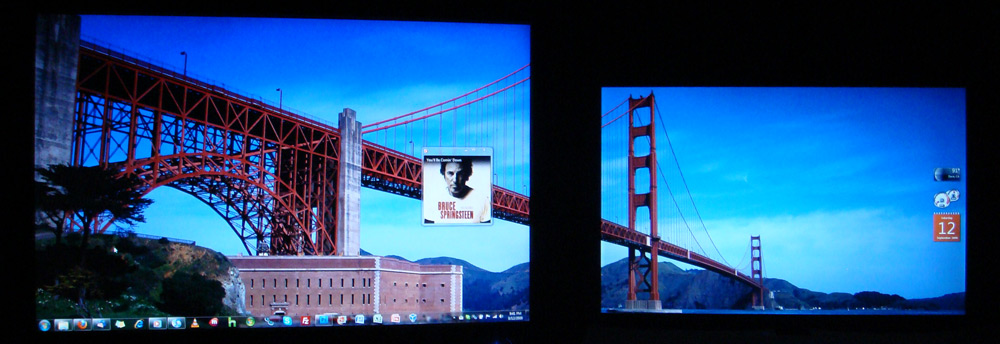 After my tutorial on setting up Multiple Monitors on Windows Vista last year, a couple of you have written in asking for help with Windows 7. For the most part, it’s just as simple and more options are now available as well. My setup currently consists of a Dell XPS M1530 laptop connected to a Samsung SyncMaster 206BW. I’ve got a dual display setup, so I can drag windows between the two displays and utilize all the screen space. It’s quite easy and you can have it setup in minutes.
 Hardware + Software Requirements:
- Laptop with a VGA, HDMI, or DisplayPort output
- A Monitor with a VGA, HDMI, or DisplayPort input
- One cable to connect them together
- Running Windows 7, with proper drivers
Getting Setup:
- Connect the monitor to your laptop
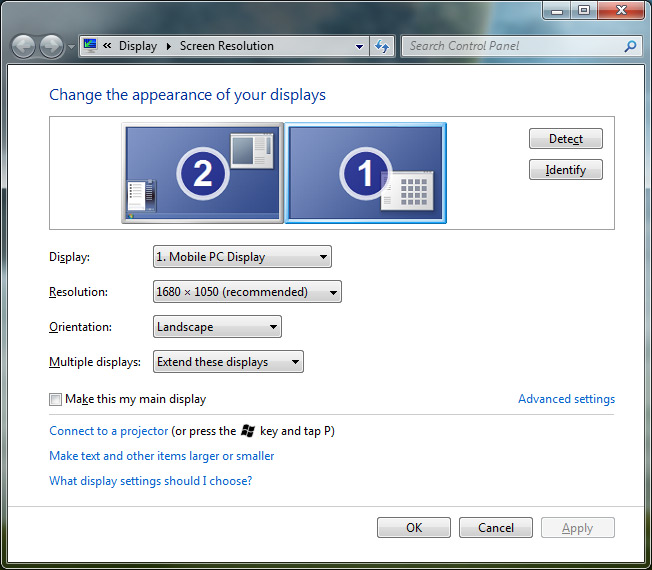
- Right Click on the desktop and select Screen Resolution
- Choose “Extend these displays” found under “Multiple Displays”
For most, that should be about it. Just hit Apply and everything should be setup. But for instance say you have physically positioned your laptop and monitor above or below each other. You’ll have to make a few changes. Click Identify to figure out which monitor is which. Then drag the display icons into the proper position as they are located physically on your desk. If you would like the start menu to be located on a different display, click on the display you want and check the “Make this my main display” box. Hit Apply again and all should be working! Give it a shot, just try dragging a window from one display to another.
If you have any questions or just want to say thanks, feel free to leave a comment!
Related: Setup Multiple Monitors in Vista


It is a great thing, in Windows 7, especially, since you can drag the Icons,
off the desktop to the “iconized taskbar” and keep it much more tidy, then in Vista. Having a Dell XPS 730x with dual 2GB HD 4870 X2 cards in crossfire,
makes having four(42″ Sony)monitors look like a Wall of desktop space, when you can arrange all four to extend(two atop the other two) Windows 7, and have all the desktop real estate, you want. Besides it looks awesome, when
gaming!
John, are you saying you have 4 monitors ruinning off one computer?
I can’t even get a second monitor running off my Eee PC 1005.
I could when I was running XP on my first (and much older) Eee PC, but in Windows 7 I now get a very different set of options when I select “Screen Resolution”.
I can only choose to have the desktop appear on the laptop monitor, the external monitor, or both.
Vista has the limitation that all video drivers must be from the same vendor. I have a quad monitor system that worked extremely well under XP, but would not work without a new card under Vista because the onboard was Intel and my card was ATI. Does Windows 7 have this same limitation?
Thanks
I need help with a dual monitor setup. A month ago I bought 2 ASUS VW246H monitors. Each has 1 HDMI, DVI, VGA input terminal. Then I bought an ASUS CS5111 desk top which has 1 HDMI, and 1 VGA terminal.
If I connect one monitor to the VGA and the second to the HDMI terminal can I use this setup for dual view monitors?
Please advise. Your article is helpful and very timely.
Thanks again.
DK
Hey Dale,
If your computer’s video card supports output through both at the same time, yes it should work just fine! If it’s only a month old desktop, since it’s quite new it should probably work just fine.
One thing to keep in mind is quality. The quality of VGA/HDMI is digital so it’s accurate representation of the output from your computer, so the quality will look damn good. However the VGA might not always match up as well. It might be slightly blurrier. If you have good eyes, you may notice that. But for the most part, it should work perfectly!
Sahas Katta personally I am running a HP Pavillion dv9000 maxing my RAM to 4 Gigs I am driving a Samsung 23″ HDTV wanting to apply wing monitors and I am thinking of going to two (2) LG’s W2453VPF 24″ Widescreen LCD Monitor 24″ Widescreen LCD Monitor, HD Ready 1080p, 50,000:1 Digital Fine Contrast Ratio. Since I have been told will actually match and use the screen resolution aspects for additional monitors 2, 3 and 4?
My question since I can only drive with my HP xb3000 Notebook Expansion Base what options do I have to run the additional monitors Windows 7 is advertising or if I go back to a Desktop what specs does Windows 7 require for the additional 3rd and 4th monitors? Why so many monitors Social Networking, Free-Lance Writing, Blog under construction that I will be moving to Square Space soon. Just to much stuff I need to do that I am tired or doing on two Laptops.
Ideas or commentary appreciated…
Doing multiple monitors has more to do with video cards than with RAM. You have a pretty media-eccentric laptop, but I don’t know if it will be able to do more than a total of two displays at a time.
Most laptop video cards support outputting one display at a time. That means the laptop display + external display = dual displays. Usually not any more. The only way I’m aware to get more displays is with USB display adapters, which work, but not that great. I suggest calling up HP to ask how many monitors the laptop supports outputting at once!
If you go back to a Desktop, it once again depends on video cards. You need to have possibly one or two video cards to support two or more displays. Windows 7 can support more than 2, it’s more of the right hardware that’s required.
I have a Dell Precision workstation that I have upgraded to Windows 7. Only one thing does not work. 7 does not seemt o support my video card that used to run in dual screen mode on XP – it is a ATI Radeon FireGL 8800. I cannot find any new drivers, nor a generic legacy driver that will work. So I am left with either one or the other screen, but not both. Detect etc do nothing. Winows just discovers a ‘generic vidoe card’ Any ideas? I do web design, and its not easy without dual screen
Many thanks
Richard, your problem is that your Video card is only a DX 8.1 supported, by XP(32 &64 bit) It isn’t support by either Vista or Windows 7.
The only thing I can suggest is that you upgrade your Video card to a better DX 10 Workstation card. Consider any of the, 4x/8x Quadro, or a Matrox PCI.
The newer FireGL workstation cards require PCI-E, which your Motherboard doesn’t have.
You are limited in your choices by the Motherboard, in your Dell Precision Workstation.
Regards,
JC
@John, I couldn’t have said it better!
Thanks for helping him out!
Thanks John
I was sorta coming to that conclusion. I know nothing about vidoe cards – is there a specifc one that would be cost effective? I do not need games capaiblity – I just have two 22 inch monitors whihc I need to run with at least 1280 * 1024 each so I can do web design etc
Many thanks for your help
Richard
(Its the firts time I have used this type of forum and was impressed to get help)
I want to keep my existing machine going longer, as it is still more than enough power for everything I do, and Windows 7 has speeded it up !!
Your Welcome Richard @Sahas No Problem, I like being a member here. Learning all the new things you present, and helping out, when I can.
Okay Richard,
You’ll need a new Video card & a PSU= Power Supply Unit
Technically, since I know the FireGL8800 is a 2x/4x AGP
Video Card. I picked out an 8x AGP card which is known to work in Dell Precision Workstation 350-370 Models. All AGP cards are backwards compatible, so the 8x will work at 4x in your PC, but it will be MUCH faster!
The Parts, I choose for you were BOTH (What I consider) the best brand, for each part, and the best price. (Also what is known to work in Dell Workstation PC’s) Fortunately, I know someone nick-named PK, who has your model
[he has the 350], and I helped him upgrade, with these exact parts.
I always recommend, people buy from NEWEGG.COM
Their support is awesome, and they have fast shipping,
(which is mostly free)Plus, great prices, which are hard to beat.
I’ve already found a solution with both the Video Card & PSU for Approx. $150
(well even less after rebate, and whatever your shipping amount is[if any]) Hopefully that is cost effective enough ;)
SAPPHIRE 288L Radeon HD 4650 1GB 128-bit DDR2 AGP 8X HDCP Ready Video Card $84.99 [$10.00 mail-in rebate] $74.99
Works in Dell Precision Workstation PC’s
http://www.newegg.com/Product/Product.aspx?Item=N82E16814102851
Antec Basiq BP500U 500W Continuous Power ATX12V Version 2.01 Active PFC Power Supply – Retail $54.99
Works in any PC [including Dells]
http://www.newegg.com/Product/Product.aspx?Item=N82E16817371004
Total= $139.98 plus shipping (Again Shipping might be free)
The PSU has the 6 prong power dongle you’ll need for the Video card!
Once you get the parts, I can help you install them. With step by step instructions.
Regards,
John
Again the total will be minus $10 with the mail-in rebate. Save the Box from the Video card. normally they require the Bar Code and a receipt as Proof of purchase!
John
I’m running windows seven and have a brand new computer. So i bought a small tv i would like to use as a second monitor so i bought the cables to do so but when i got it im only getting a mirrored image of the first monitor. how do i actually split the monitors rather than copying the image on the second one?
Did you read the article? That’s what it’s about.
I am running dual monitors on an HP desktop using an Nvidia 8500gt video card. My monitor is hooked up to the dvi port, while the second monitor is my hdtv connected through the video card’s hdmi port. The issue I’m having is that even though I had the monitor hooked up first, and it’s set as the primary display, it’s #2 in the list, and when I hit win+P and select monitor only, it switches to the tv. It also seems to prefer opening new windows on the tv. The problem with that is I really only use the tv display for watching videos most of the time. When I first hooked it up, the tv showed as #2 and I can’t remember what I did to switch it. Is there a way to switch it so that the monitor is #1 and tv #2 and/or let windows know which is the monitor and which is the “projector?”
As the article states, set it so that the monitor that you use the most is the main display. Check that box in the Display Settings. And that should do the trick. If you need to re-arrange their physical positions, just drag the monitors around on the settings page.
Hi John
With regard to your advice on the SAPPHIRE 288L Radeon HD 4650 1GB 128-bit DDR2 AGP 8X HDCP Ready Video Card, I went ahead and bought one. I am in the UK, so it was a £ issuue not a $ one :-)
Instaed of a new power supply I found an adpator cable for £2 (about $3) When they both came, I found the card already had an adapter cable so I used that. I followed the intrsuctions and it all worked second time. (I had to physically put the monitors around the other way – but I guess I can live with that)
Many thanks for your help – you are a star
Regards
Richard
Hi Richard,
I see, yes there is a difference between £ and $ but you seemed to have worked it out. While they(ATI) do recommend a more powerful PSU, I’ve seen many work with the Stock Dell PSU, like yours did.
Just keep an eye on that part(PSU) in the future, although I doubt you’ll have issues.
I’m so glad it worked out for you!
Regards,
John
Okey my turn. Lets see if you guys can fix this one.
Im running Windows 7 on my Amilo M3438G from the stoneage, with custom drivers as i even had when running Win XP. But now my brand new 50″ plasma doesnt get any signal from my computer. The GPU is a Geforce 6800Go. And the computer is running very nice and stable and gaming is no problem. In NV Control Panel i cant choose Multiple displays at all, the option doesnt exist. If i try to enable it in windows i see my TV and i choose clone as usual and hit “Apply”, it tells me “Unable to save displaysetting”. This annoys me. Is the problem in my modded drivers, maby the modded .inf?
If it’s a 50″ plasma, you are probably using HDMI? If that’s the case it might not be working since it might require HDCP encryption.
I don’t know which custom drivers you are using. There’s a million of them out there. The latest NVIDIA ones from their website have been fairly reliable. If you install those, it usually includes the Control Panel for Multiple Monitors in the Advance View.
I think many would argue, that your notebook with these specs:
Centrino 2Ghz Pentium(760)-M CPU 2GB’s of Memory & a 256MB 6800go GPU and RAID0/1 capable isn’t considered Stonage[Yet!] I liked it alot when I first saw the specs in 05′ its a shame[for me] they sold them across the pond from me. I went with an XPS gen 2 notebook back then.
I agree with Sahas, try the latest GeForce Release 179 drivers for Win7
http://www.nvidia.com/object/geforce_notebook_winvista_win7_179.48_beta.html
hopefully it works with yours.
Hehe okey.. Yes im using HDMI in my TV and with a DVI adapter to my notebook. It worked fine with Win XP. And the drivers on nvidia.com dont work with my notebook, they are custom made by the factory, which hasnt released new drivers since i dunno 2005 maby. So the only way is to run custom.
Hmm i have tested out some more. When i choose the option “Connect to a projector” or something like that i get the signal on my TV! But when i do that my laptop screen turns black =(. Even if i choose clone or any other option. There gotta be a way to force dualscreen mode somewhere. Anyone? I belive there is a problem in nvtweak, a line missing or whatever.
Anyone has an answer for that problem ?
I also have the problem that my laptop screen, once it gets black, do not start to work again until I reboot the computer…
A problem of frequency ?
ok so this is an odd one for me, im playing a game in full screen on my primary which usually gets reresoluted on a few it will change 2ndary’s resolution(lil odd) however my current problem comes from when i want to use 2nd it will minimize my game and will reresolute everything to my primary. my thoughts were that isn’t each monitor its own? so once set they shouldn’t change when only 1 is being effected. i have never seen this be an occurrence with dual monitoring even if i am new to 7.
Hellow everyone, I’ve been useing windows7 since it came out and I have to say im loving it so far. I really did not find any problems with it untill i lost power at my house. When i turned the computer back on my display settings went back to there original settings. So I set it back to dual screens extended, put all my icons back where they I wanted them then restarted. Again back to one monitor, so I did all the steps checked all the setting checked all the drivers and nothing fixed it. I have 2 ATI Radeon HD 4870X2 Crossfired. This is a high end gaming machine 12 gigs of memory quad core processor. So i was thinking ati might not have drivers out yet that work right. Then i checked last night and they had new drivers so I updated the drivers restarted the computer down to one monitor again. So again i looked everywhere online for anyone with this problem no luck. I wanted to know if there was settings somewhere in windows7 im missing I have looked everywhere.
Things can get wacky when you have a blackout/power surge. It may be a hardware issue. Take your cards to worstbuy and ask if they will test them.
Or get a friends and swap them out, that may determine whether a hardware problem or software problem
Is it possible to use 2 different pictures for each monitor?
Yeah if you run dual monitors you can (if your computer can handle it) show a movie on one screen and do other things on the other one like play a game or something.
Of course. But I was talking about 2 different backgrounds – wallpapers. I do it on XP at work. But at home I have Windows 7 and can not find if it is possible too without other software like DisplayFusion…
Not much improvement on custom wallpapers. It’s pretty much how you had to do things when Vista was here. I wrote a quick article about it here.
http://skattertech.com/2008/05/dual-screen-wallpaper-in-vista/
I missed this. It is possible in Win 7 !(except Win 7 starter Edit)
First, you’ll want to go to Display Properties, click Customize Desktop, and then the Web tab> Now you will want to click the New button, and you’ll be presented with a dialog prompting you to select either a webpage or wallpaper. While it might be cool to use a wallpaper of a website, we’re worried about background images today, so browse to a wallpaper file.>
Now this next part is slightly tricky if you aren’t familiar. You will see an item on your desktop similar to this… depending on the wallpaper you already have, it might be difficult to notice(A small drop-down Taskbar). Move your mouse near the top of the new image that is sitting on your screen, and you will see something similar to it.> Drag the titlebar of the image over to the monitor you want to cover with the wallpaper, and then click that Maximize button. The wallpaper will magically cover that window. We’re almost done> Next, you will want to right-click on the desktop, and choose Lock Web Items on Desktop ***because you don’t want the image accidentally moving around on you***
And that’s all there is to it. You now have two seperate wallpapers! (or even three or four!)
Dagra
Ok everything seem crystal clear here, love it! Here is my problem, i have upgraded to win 7 and am operating duel monitors as we speak from my laptop. Here is the kicker, whatever i see on the laptop the hpw2007 is showing the same exact things? No obviosuly im say 50% there to run various pgrms on each screen but im stuck.
What I have done, I have gone into the control panel, but ony its detecting 1 monitor, i have tried updating all my devises with updates and hall are current,,,what the heck am i missing?
I am trying to use my Toshiba laptop as a second monitor. I have selected “Extend these displays” and can see the both monitor images and I can even change the resolution on both monitors. However, no matter what I do, clicking on “Identify” only identifies monitor #1 and I cannot get dual monitoring working. I have tried using setting the laptop as monitor #1 and my desktop as #2 and visa-versa. I get the same results every time. Windows 7 detects the second monitor, I extend the display, but it can’t identify anything other than monitor #1. I even tried connecting directly to the second port on my Radeon 4850 instead of my monitor and that didn’t work either. I also tried the function keys several times (fn + F5 and F9 on my computer) and have tried setting up dual monitoring from my video card settings on both of my computers as well as using the Windows settings like in this article. I am hoping someone else had this issue and could help me out or has a suggestion on what else to try.
I have the same exact problem RaynMan posted on Jan 2, 6:25
Any fix / recommendations…
i’m trying to setup a vga supported monitor with a gateway laptop that originally had windows xp. should i blame it not working on windows 7 or on the video driver?
Hi,
I am new to Win7.
Have a AGP Nvidia Geforce FX5500.
Used to be able to have dual view when I was on XP – watch video on 42″ TV whilst still working on 19″ LCD monitor.
Is this setting still available in Win 7?