


Setup Multiple Monitors In Vista 81

Windows Vista Dual Monitors
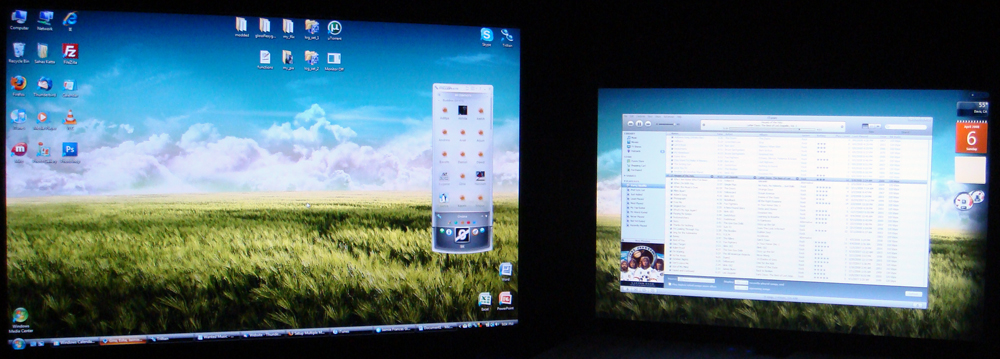
If you are running Windows Vista on a Laptop and wish to utilize dual displays, this is just the article for you. Instead of replicating the content on your laptop screen on to your external display, you’ll be able to extended your desktop across both. By doing so you’ll gain extra screen real estate meaning more space to work in. Once you have a successfully functioning dual display setup, windows can be dragged across from one screen to another and you can have two fully maximized applications visible at once!

Some Small Requirements:

  • Decent Laptop with VGA or HDMI output
  • A monitor with VGA or HDMI input
  • A VGA or HDMI cable to connect both together

Windows vista Multiple Monitors Display SettingsGetting To The Settings:

  1. Connect your laptop to your external monitor
  2. Right Click on your desktop and select Personalize
  3. Open the Display settings window (at the bottom)

Next arrange the two monitors to the setup you have. Monitor 1 would be your laptop’s display and Monitor 2 is your additional display. So, for example, if your laptop is on the left and the monitor is on the right, drag the two boxes around so that Monitor 1 is on the left and Monitor 2 is on the right.

Extending The Display:

  1. Select Monitor 2 in the visual or from the drop-down menu
  2. Check the box besides “Extend the desktop onto this monitor”
  3. Just hit Apply. The screen should flash and you are done!

You should now be able to drag a window, this web page for example, from one screen onto another. If you would like to move your Start Menu onto the other display, just drag it onto the other screen. (Right-click and unlock the Taskbar first!) Also note that sometimes Vista messes up the resolutions, so if one of the windows looks horribly wrong go back to the Display Settings and manually drag the bar to the correct resolutions for each monitor. If your machine is using either the NVIDIA or ATI control panel, I suggest using that to configure your setup instead of using the default Vista Display Settings.

If you have any problems, questions, or suggestions feel free to express them below!

Related Article: Setup Multiple Monitors In XP

Blogger Delicious Digg Email Facebook LinkedIn MySpace Reddit StumbleUpon Twitter Yahoo! Buzz

81 Comments

Write A Comment

James Creer says:

Did this a while back.
Vista messed up the resolutions quite a few times like you mentioned but once got that issue sorted out it worked a charm.
Nice to see that your extending the knowledge out to everyone xD

Sahas Katta says:

Something that I also failed to mention was that I haven’t yet had any issues when using multiple monitors after upgrading to Vista SP1. Before that, just as you said, it sometimes randomly started to change resolutions and mess up the settings and I would have to go setup everything again. So if you are still experiencing those problems, I suggest you attempt to upgrade to Service Pack 1.

jim says:

thanks for this. i had no i dea u could do this with a laptop.
i always just closed the lid on my laptop when i connected it to my big display
now i can use it to put all my widgets and chat windows.

Tam says:

I have Windows XP,but i want to download and install the upgrade adviser of
Windows Vista.

Sarah says:

Ok, so now that I’ve done that and have the extended display on two monitors, how do I change it back so that both monitors display the same thing?
Thanks!

Sahas Katta says:

@Sarah
Go back to the display properties and uncheck the box for “extend this monitor”. Or if you happen to be using the Nvidia control panel, then just go to the multiple display settings and choose the option to clone the content on both displays. – Hope that helps!

matt says:

I did all of this for my insignia tv. i accidentally clicked on “this is my main monitor” selecting the tv and now it says mode not supported on my tv and i can’t change anything because my screen goes blank. I have vista and am using all vga connections correctly. I just can’t edit my mistake and I tried using another monitor and that one worked fine, but it must be saving separate settings for different monitors. can anyone help?

JC says:

I just posted to an earlier post, but my dual monitors are now working great and I used the monitor stands at buytech.com [link removed by admin] to align and mount my monitors. The monitor sit flush.

Michelle says:

Thanks for the information on adding a monitor to use with my laptop. I use two screens at work, and it’s good to be able to do so at home, too.

Jack says:

Two screens are for minimalists…how about for a third screen? Is that possible on a laptop using Vista?

Sean says:

cool stuff though how do you use the other screen? i can connect with see both monitors but can only use one at a time. I also have NVIDIA.

Benny says:

Hello, I’m having a problem while trying to clone my pc monitor and the tv monitor.
when I’m trying to clone- on the tv screen I can see the desktop but my pc monitor gives me an error “Mode is not supported”.
I’m running on Vista SP1 32-bit, graphics driver is : 175.19 and my monitor is “Proview”
What can I do to fix this problem with cloning?
Thanks in advance.

Johnny says:

I want my desktop to extend to the RIGHT, meaning when I drag a window from my left monitor to the right one, it should work. But right now, I have to drag the other way. How do you fix that?

Sahas Katta says:

@Johnny
Go to the Display Settings window. There you should see two boxes with the numbers ‘1′ and ‘2′. Click and drag them to the position your monitors are in. So in your situation, I think you’ll have to drag the number two box to the left of the number one box. Just hit apply and hopefully that should work!

Sunny says:

I followed your instruction but both monitors were acting as two instead one, which means they both are displaying the same it. If I click start in the first monitor, the same thing will happen in the second monitor. Please advice

Yves says:

Hi there,
I am having a problem with my 2nd screen that is completely out of X-Y alignment. The bottom left of the screen actually appears close to the top right of my 2nd monitor, leaving the rest completely black. I have tried deleting the settings and the TMM string in the registry, but that did not help the alignment. I tried with another 2nd monitor and that also gave the same problem. Anybody an idea?

Tony says:

Hi. Have you tried to run a slide show, dvd etc extended to full screen in the secondary monitor only? yup it only displays in the primary!!!! Unlike XP which does behave. Also Media centre opened in the Second screen when expanded does not allow the use of the mouse in the primary screen unlike XP! This is true of both a laptop and a pc I have using different hardware and drivers. Its driving me up the wall, anyone else experienced this?

Tony

Don Traut says:

Can you extend to 3 external displays?

Dwayne says:

I use Vista and would like to use two external monitors (not my laptop monitor). I have a Tosiba Portege M400, with a port replicator that allows an analog and digital connection simultaneously. Each of the monitors works properly when I unplug the other, however I can’t seem to get both of them working simultaneously. If anyone can assist, I’d be most appreciative. Thanks

ky says:

I have 2 monitors set up, one on my laptop and then another monitor. My problem is that my external monitor’s screen is really dim with bad contrast. I tried adjusting the settings on it but so far haven’t fixed the problem.Right now in the Nvidia settings, i have it set as laptop display+viewsonic and have my laptop set as the primary. If i change these settings to the opposite (viewsonic monitor+laptop display with the viewsonic as the primary, then the problem is the opposite, the external monitor is normal color and contrast and the laptop display is messed up. I know this is a long explanation but hopefully someone understand what i am saying…thanks for any help.

John says:

I’ve been using dual monitors with vista and now how do I change it back so that both monitors display the same thing?
I’ve tried to uncheck the box with “extend the desktop on this monitor” but it doesn’t work! plz help:)

daniel says:

i set my laptop and monitor to dual screen, sucessfully. the problem i’m having now is my lap top blinks on and off causing the video that i dragged to the monitor to drop back to the laptop. would you know what would cause that?

venkat says:

We will vga to hdmi results

brianZ says:

thanks for the clean and clear information…
my pet peeve is that i use two dual monitor scenarios (one for home, one for work) and i’m tired of constantly having to remind Vista of the preferred location and the preferred resolution for my dual,extended display. do you know of a free or cheap application that lets you configure your preferences one time and then it automatically adjusts your displays properly?

Redame says:

The only problem im having is that the external monitor is telling me that i need to turn hit a key or move mouse. which i dont understand can someone please tell me what i need to do next

frederick says:

I re-iterate what John SAID, …. please give a solution

I’ve been using dual monitors with vista and now how do I change it back so that both monitors display the same thing?
I’ve tried to uncheck the box with “extend the desktop on this monitor” but it doesn’t work! plz help:)

Abby says:

Just done this for the first time – everything works except the mouse right content menu. If I Right click in the left hand montor ( the 2nd one) I see the context menu in the far left hand side of my laptop ( the original monitor) Can anyone suggest a solution? Thnaks

ellie says:

im just wondering how do you get you monitors to work on a laptop so thatthey both display the same so when you press start for eg it will also press on the second? i had succes achieving this in xp but not vista, any help will be much appreciated.

doug says:

Setting up Vista with dual monitor for my laptop went very easy…but do have a problem. when my computer is idle and screensaver kicks in, when I log back in only one monitor comes back on. The only way to restore both monitors is to select the button where it put system in low power so the session is easy to restore….I do that and log in a second time and then both monitors respond. But that requires logging in twice etc. sure would be nice to know what or why it does not see second monitor when it comes out of screen saver mode.

Guy says:

Using XP Pro, the setup works fine for a current session. However the monitors go back to mirroring each other after booting instead of #2 retaining the setting to be extended. Is there a fix?

geekc says:

My laptop is operating on Vista. I would like to connect it to 2 or 3 external monitors of the same size. I do not intend to view from my laptop screen at all (much smaller screen). Think you can help? Thanks!

Thank you for this very informational tutorial but I am sorry to say that it does not solve my problem. I own a pc that is currently connected to a monitor via dvi to hdmi and an hdmi to hdmi on a toshiba 61″ hdtv. NVIDIA recognizes both monitors but does not give me the option to have multiple display, instead I can only select “Only use one display (Single)” under Set up multiple displays category on the right. However I can use either monitor as the primary display. Keep in mind my pc has one of the best video cards out. If anyone has any information on solving this problem it would be greatly apreciated.

Sincerely,
Michael Benin
High Def Webdesign

Raja says:

Hi,
I purchased a HDMI cable today, because on my SL500 Lenovo have a HDMI port and my LCD LG 37″ have a HDMI port ! I have connected in both sided, but I my tv don´t catch any signal ?? I have tried in vista buisness to setup external monitor,but my computer do not find any external monitor/my lcd. What shall I do now ????

steven says:

thank you this works good.

Nate says:

On Vista, you should be able to get both monitors to display the same thing again by holding down the fn key and pressing f4. You may need to do this a couple of times, because this toggles between putting the display on one moniter, than the other moniter, than both. Hope this helps.

Chris says:

THANKS SO MUCH. I couldn’t figure out the drag and drop part with the monitors for the life of me! I recently changed my monitor to the other side of my laptop and couldn’t figure out how to change it. THANKS!

Caren says:

I have connected monitor 1 and monitor 2 successfully. Thank you for your guidance and advice, it helped me alot ! I just want to know how to clone the two monitors so that they show the same picture. Thanx.

[Comment ID #70376 Will Be Quoted Here]
Downloaded most recent NVIDIA drivers. Works fine now.

Excellent: it took me seconds to read the advice and even less time to put it into action. I am now typing on my second monitor and watching the rest of the world go by on my main monitor!

Big thanks

Duncan

Matt says:

ok so I have connect laptop to HD tv through HDMI cable, works fine, however, I want to play games on my tv not laptop screen, while having the other screen ‘free’ with apps/toolbar ect. When I go into display properities it will not let me click ‘Make this my main monitor’ for my tv. Any advice? I thought of another way around by downloading an ‘extra toolbar program’ but the problem is that the game is unable to exit fullscreen mode and be restored down (smaller not full screen which would enable me to drag it accross like other windows). I’ve tried most things just ran out of ideas . . .

steven says:

hey matt, i have the same problem as urself. didnt see any reply on ur answer so was wondering if u maybe got it via email? if so, could u perhaps tell me what to do:D

Sahas Katta says:

One thing I can tell the both of you right now, is that leaving dual monitors enabled while gaming isn’t a good idea. If it’s a graphics intensive game, most average video cards aren’t designed to support playing dual screen games. I do realize the game will actually only be on a single window at a time while the other may have a webpage or something else running. But that itself puts a lot of stress on your video card and degrades performance. It’s best to drop down to just one display while playing games and going back later. And if you can’t find those settings, usually the ATI or NVIDIA control panel based for your video card offers those settings. Good Luck!

Jacalyn says:

Hi There, great tutorial, but i was just wondering how to connect a third monitor (if indeed this is possible!) i’ve got a laptop running an external monitor but wish to add an additional external monitor to the two that i have set up. Ant help would be appreciated. Thanks in advance.

LindaH says:

I had to disable extended desktop on two monitors and my second monitor is now dead. However, whenever I open PowerPoint is appears to open on the dead monitor, but now I can’t get it back again. It shows on the Windows taskbar, but move and resize don’t work. HELP!!!?

Sahas Katta says:

right click on the powerpoint window in the task bar. click move in the context menu, shake the mouse, then press one of the directional keys. now when you move your mouse the powerpoint windows should move back to where your mouse is!

Brandon says:

hey there,
first of all i’m using vista
i got a question here..
the dual display works fine when both of my laptop and monitor resolution is the same (1366×768).
when i set my monitor to 1920×1080 my wallpaper on the monitor wont display to full screen even though my wallpaper’s resolution is 1920×1080.
Do anyone here knows any way around this problem.
thanks in advance..

Sahas Katta says:

It’s quite an easy solution, but a bit messy. Best thing do is choose a wallpaper that is of the best resolution you can pick. Next when you are in the Background settings, use the option to “Stretch Image”. If that doesn’t work, try the center option. Keep in mind these solutions will make it look different sizes on both. Yes, Vista isn’t too great at handling two monitors. Windows 7 has gotten a lot better.

And if you want more multi monitor features checkout Ultramon, it’s an amazing little app that will let you choose different images for each display and a lot more http://www.realtimesoft.com/ultramon/

Michel says:

Where can I get that wallpaper, seen on both the monitors in the picture above?

Sahas Katta says:

Just uploaded them for you, grab them at: http://www.box.net/shared/atx4npnhtx

That the original one had a car in it, a friend was bored and used Photoshop to get rid of it. And I didn’t make or create the original, I don’t know the source either, so I don’t want to take credit for it. I think I found it browsing DeviantArt if I remember correctly.

I’ll also be posting a article sometime soon with places to find great Dual Screen Wallpapers and setting up multiple monitors for the awesome new Windows 7!

Sahas Katta says:

If anyone is trying to get Dual Monitors working with Windows 7, there is our tutorial: http://skattertech.com/2009/09/setup-dual-monitors-in-windows-7/

ems says:

i messed up the setup.

regarding the main monitor: my laptop (on the left side) is not set as the main monitor. when identifying monitors the 2nd monitor is numbered 1. dragging 1 to the left does not help.

how can i fix this? i have vista running on a 64-bit laptop.

Larry Rosen says:

I have a strange problem and I hope someone can help me. I am at LROSEN@CSUDH.EDU and would be so happy if you can help me fix this that i will mail you a copy of my last book and one of my new book when it comes out (Me, MySpace, and I: Parenting the Net Generation is the last one and Rewired: Understanding the iGeneration and the Way They Learn is the new one). I have a laptop (HP) and an external monitor (Samsung). I always boot up the laptop, then attach the external (using a VGA cable) and am able to extend my desktop to it. wonderful for a writer. Up until a few days ago it worked fine. Now, for some odd reason vista still shows both monitors but shows the #2 over the “inactive laptop monitor” and #1 over the “active external monitor” even though my laptop display IS ACTIVE and external is INACTIVE. When I click on identify monitors it shows a #1 but the large #1 shows on my laptop monitor and the external is not working. I hope I am making sense here. Can anyone help me out?

Sahas Katta says:

I’ll get back to you by the end of the day!

Larry Rosen says:

One more thing to add. When I do plug in my second monitor, my laptop screen goes black and i get a message on the external monitor that says “check signal cable” which is always on anyway when the cable is disconnected. i am baffled. hopefully someone will want my books and can give me some insight to get it working again!

Sahas Katta says:

First, try to figure out if your monitors are working or not. The laptop should be working perfectly on it’s own. You should also be able to just use the monitor alone. If both those are working single at a time, then we know it’s just a setting issue.

You can also go to http://www.hp.com and grab the latest video card drivers for your laptop. That might solve some possible issues.

Also make sure you are pressing the check box on the “Extend desktop to this monitor” for the secondary display, not the primary!

Unless there’s a hardware failure, it should be easy to solve!

Larry Rosen says:

OK so how do i tell if they are working correctly? When I look at the display settings they are crossed up. That is, the monitor labeled “1″ is actually my external monitor which is not working) but is displayed as though it is and (meaning lit up and not cross-hatched out) as I can tell with the name (i think) in the box below the two monitors (SyncMaster 2243BW…..). When i look at its properties it says the adapter is NVIDIA GeForce 8400M GS. The laptop monitor works fine as long as i don’t plug in the external and then neither works. The one labeled primary display (but the picture shows it is the external BUT when you identify it, it is the laptop display) is checked as the main monitor. When i try to check the box for monitor 2 (which should be the external by its name — (Default monitor) on NVIDIA GeForce 8400M GS — it will allow me to check “extend” but when I apply the settings nothing changes. This is very frustrating. Sorry to bug you but i am hoping that you can figure this out. Should i download the video driver as you have suggested? that makes sense BUT the laptop video IS WORKING — it is just labeled wrong and i can’t get the external to work…….

Sahas Katta says:

Try upgrading the video card drivers. Then get back to me.
Then try using the NVIDIA Control Panel to setup Dual Displays.
Do that instead of using the Windows Vista Interface!

If that doesn’t work, we’ll figure something out!

Larry Rosen says:

OK, tried updating the video card driver – Under display adapters it does say NIVDIA GeForce 8400M GS which is my laptop driver (i think). went to NVIDIA control panel. IT does say i have two displays – laptop and Samsung (my ext monitor). I tried to get it to do dualview which it accepts but the samsung says “check signal cable” still on the screen. just about ready to throw the whole thing against the wall. I do appreciate you doing this for someone you don’t even know!!! is it possible my VGA cable is bad? One other thing to note. A week ago or so I had my wireless dsl modem go down and had to buy a new one. Netgear had me install the router before i could use the wireless. is it possible that doing that created the problem? sorry but as much as i research and write about technology and how it impacts us i am an “intermediate” user and not really savvy about any complexities. btw if you want to see some fun stuff go to http://www.csudh.edu/psych/Rosen’s_Rock_’n_Roll_Technology_Clock_Recycled_Art.htm
thanks again!!!

John Walker says:

When I plug my second monitor (Sony 32″ TV) into the computer, the laptop screen goes blank and on the 2nd monitor says:

“Cannot display this video mode, change computer display input to 1360 x 768 @ 60 HZ”

But my video card will only go to 1280 x 800!!

I cannot make any changes in the Nvidia Control Panel because when the 2nd monitor is plugged in, the laptop screen is blank. (I think it is set to only show one display)
If I unplug the 2nd monitor then the Control Panel only shows the laptop as the only monitor.

Is there a file somewhere that I can change so that the 2nd display only goes to 1280 x 800??

Sahas Katta says:

It sounds as though your video card isn’t capable of handling such a high resolution. It looks like it is offering the max resolution it can handle.

The best you can do is mess with the two sliders or dropdowns for choosing multiple monitor resolutions in the interface on the NVIDIA control panel.

Joanna says:

I have a dual screen setup, and just have a general question. Is it possible to play like a video full screen on the secondary screen? When I try to do this, anytime I click on anything on the original screen it no longer is full screen.

Alan says:

Help, My desktop monitor is identifying as “2″ while my TV is “1″ How do I swap those about?

Sahas Katta says:

It doesn’t matter which is numbered which. Just identify which number belongs to which physical monitor. Once that’s done, just arrange them the way they are positioned in reality in the software. You can also select “this is my main monitor” on the display you want the start menu to appear on.

wightdogs says:

Well I got it working OK but then I tried to use skype and it keeps breaking up, it was a bit better when I cloned the two screens but still not usable…any ideas?

Sahas Katta says:

Is it just lagging? If your computer doesn’t have a powerful enough of a video card to handle a dual display, it might have that issue.

wightdogs says:

It cleared after I rebooted and I had no problems, that is until my second monitor suddenly died…never buy Samsung the products are inferior and customer service is a complete disgrace :( just google them and see what I mean

Sahas Katta says:

hmm interesting. I’ve got the Samsung 206BW and it’s actually one of the best monitors I’ve had. I picked up a ViewSonic and it had a ton of dead pixels and the display kept having rolling lines going threw. Got a replacement same issue, so I got rid of it. I also got a Dell recently, it’s also has a really grainy texture, everything looks weird. Samsung was great in my case.

But I believe you, I’m sure others have had problems with Samsung. I guess I just got lucky!

wightdogs says:

“I guess I just got lucky!”
Just hope it stays that way!

http://www.customerservicescoreboard.com/Samsung?&mes=comment

Nigel says:

Hi,
I have 2 identical monitors hooked up to my desktop pc (XP). Everything is working perfectly well except that the clarity of image on the second monitor is not as good as the first. The screen resoluton and other settings are all identical. Any suggestions appreciated.

will says:

the size of the screen is different if that is the case just change the resolution and it should work

will says:

hello my sony monitor has is um well really messed up the top of the monitor is on the bottom but the screen is right side up i realy dont know how to explain it but when i move my mouse to the top of the monitor it goes to the bottom of the monitor and the top of a web page is at the bottom. what do i do. and i’m not good at making sentences with periods. i’m also a bad speller. nothing hapens when i change the resolution or move the monitor #2 farther up than the laptops. what so i do =[ =] now random smileys =] =[ =p =/ =’[

Sahas Katta says:

Re-arrange the two Windows numbered 1 and 2 to be besides each other as seen in the preview. You might have them arranged vertically.

will says:

i like pie

wightdogs says:

What sort of pie?
and how about tarts?

Jimmy says:

Thanks for the helpful post! I have a Dell xps m1530 running Vista. Do you know if it’s possible to connect two external monitors to the laptop? I’ve read that it may be possible with additional hardware, but even that wasn’t ideal because the resolution limit was low. I’m thinking about two 1920×1080 monitors if possible. Thanks!

Joel says:

Some of my users have been having trouble with the Dual monirtors. We upgraded our laptops from the Inspiron E1505 to the Latitude E6400. When someone is away from there desk for fifteen minutes the computer locks(company policy). The people who have the Dual monitor come back and there monitor is switched up and they have to reset them(This is only on the new laptop). They usually make the extended monitor as there main and the Laptop as the extended real-estate. I have researched this issue and found nothing. We were running Vista on our other computers as we are on these. I am thinking it has something to do with the new laptops but I cant quite put my finger on it. Thanks for any suggestions.

tommy says:

i have more then two external monitors and i would like to extend each of them from my laptop screen, one to the left and one to the right, i do have a spliter so both cables can go into my one jack in my laptop but i do not now how to deferenciate the two external screens from each other, how do i do this?
any help would be appreciated

icecubeski says:

noticed there haven’t been too many replies lately, is anyone responding to help request here anymore? did everything mentioned above and got to the point of getting desktop on screen. then drag item over to my 2nd monitor and i see it moving but it just creates a new window on my laptop but doesn’t open on the 2nd monitor. any further info would be appreciated.

Jon says:

Okay I am trying to set up powerpoint with office. In the midst of it I was switching my monitors around and was having trouble getting it all to work. Well eventually I did something and now neither the computer monitor or the power point screen have anything showing up on them. there is no way for me to see what the computer is doing in order to switch it back or fix it. Please help I am desperate. Thank you, Jon

Eric says:

Hi,
I have a notebook (Compaq 8510w) with Vista SP2.
I use my notebook in various situations, I always setup the second screen as an extension of my desktop. I use it at the office where it is connected to a HP LP2475w screen, at home where I connect it to a Samsug TV on the PC port, and also to a vidéo projector. They all have different setups (resolution, positions…) and I have to reset the parameters every time I switch to an other device.
Is there a way to store the various configurations so I don’t have to reset them every time I change my dual display?

Web Reactions:

Leave A Comment

Connect with Facebook

Comment Policy


RSS Facebook Twitter Email

Random

Recent

Categories

Sponsors

Archives